Manage Users in the Dashboard AdminsOnly available for users with a System Admin role.
From the Dashboard's main navigation, focus on the Users tab
 Users
Users
Users can sign in to the Dashboard with a local or their Microsoft Entra ID account. Prefer the latter for better security.
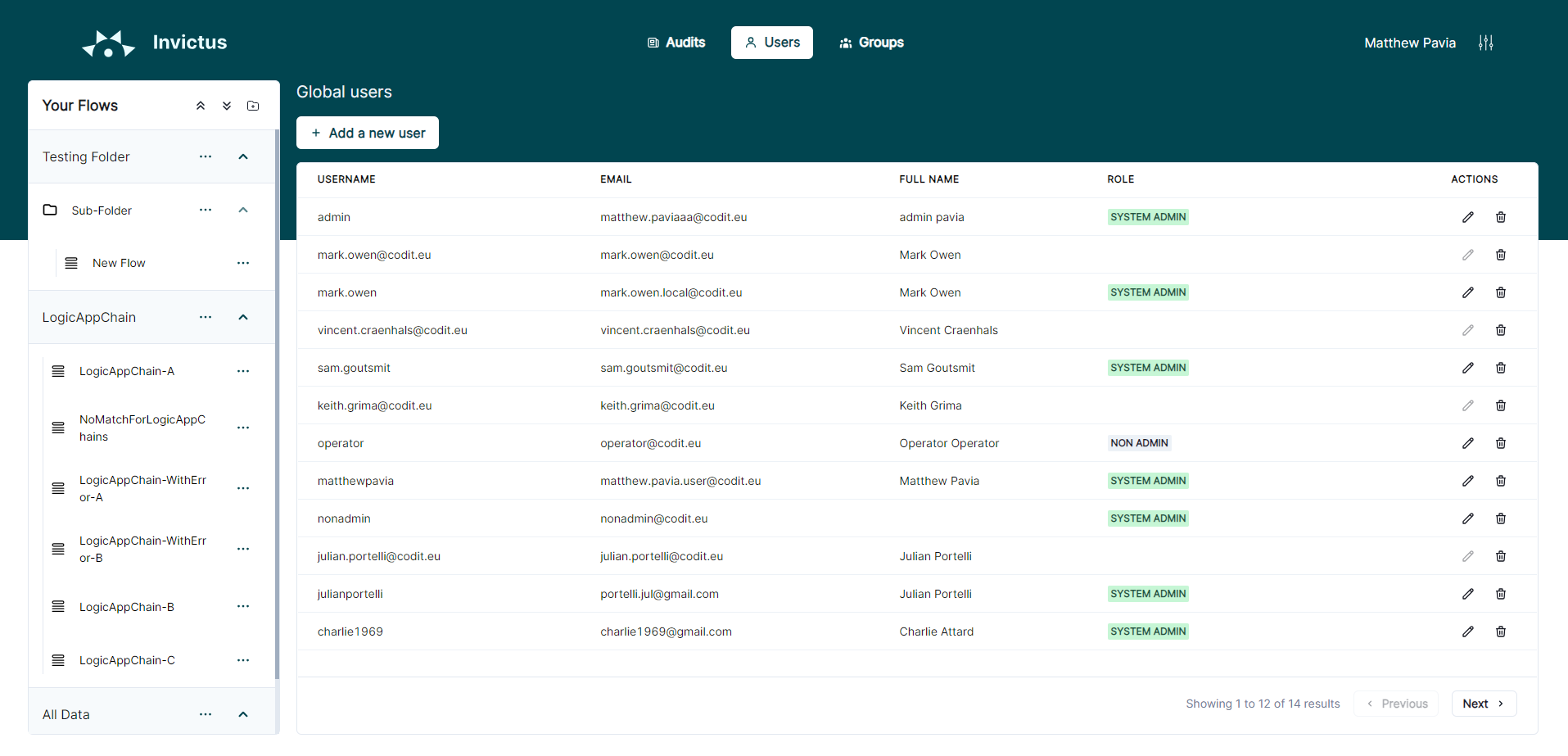
- Entra ID
- Local
Microsoft Entra ID sign-ins require a synced group (see syncing groups to set them up) and a role assigned.
Add an Entra ID account
Entra ID accounts sign in with the Sign in with Microsoft button. This adds them to the Dashboard. Make sure they're a member of a synced group that has a role assigned.
Delete an Entra ID account
Select an account from the list. Focus on the delete button to remove it. This doesn't delete the account in Entra ID.
Edit an Entra ID account's role
Entra ID accounts have no direct role. Their group membership determines their role. If the group can access a flow, so can the user.
Send forgot password mails
You can make the Dashboard send out forgot password mails to Entra ID users.
- create an Entra ID app.
- Add the
Mail.Sendpermission. OAuth 2.0 uses it to send emails. - Go to
From the Dashboard's main navigation, focus on your slider icon button, then select Settings from the pop-up menu
The Dashboard may use any email in the tenant as the sender.
You can create a local, isolated account from within the Dashboard. You can assign roles and delete them at any time. From the Dashboard's main navigation, focus on the Users tab, then focus on the Add a new user button Select an account from the list. Focus on the delete button to remove it. Local accounts always have their own role. Select an account from the list. Focus on the button to edit its Role . See available roles for more information. The Dashboard can email local accounts a password reset link. This needs an email server, set up in Settings. From the Dashboard's main navigation, focus on your slider icon button, then select Settings from the pop-up menuAdd a local account
Delete a local account
Edit a local account's role
Send forgot password mails
Forgot password setting Description Host The host address of the email server. For example: "smtp.gmail.com" for Gmail.Port number The email server port. Default is 587. Email key vault key The Key Vault secret name for the sender email address (bundled with Invictus). Password key vault key The Key Vault secret name for the sender email password (bundled with Invictus). Enable SSL Enable SSL. Most email providers require it.
Unlocking an account v6.3Feature included since Invictus v6.3.
From the Dashboard's main navigation, focus on the Users tab, select a user, then focus on the locked-user icon to unlock them
Usersa user Too many failed sign-in attempts lock an account out. A system admin can unlock them again with the button.